Product Variants
Product Variants
Beginner
Launch
3:43
Get your variants right in Shopify first. If they're wrong there, they'll be wrong in Framer.
Set up variants in Shopify
In your product details, make sure the image order matches the variant order exactly. Then connect each one by ticking the box next to the variant and selecting the right image.
Connect the data in Framer
1. Open your product page
With your store connected, open your project and go to the product CMS detail page.
2. Add the component
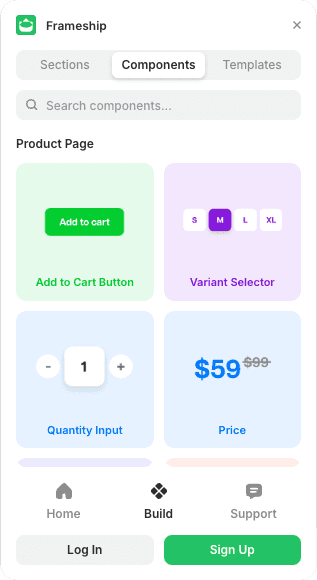
Open Frameship, go to Components and drag in the Variant Selector.
3. Connect the data
Select the component and scroll to the component settings in the Properties panel. Connect Shopify Data, Variant Image Mapping and Variant Options to the matching CMS fields.
4. Filter
Set the filter type to Contains to pick a specific variant, or Doesn't Contain to exclude one. Type the filter name exactly as it appears in the CMS.
💡 Note: To stop the component leaving an empty gap on products it doesn't apply to, use the Margin settings under Layer Style.
Common questions
My variant images are wrong. Why?
Image order in Shopify has to match variant order exactly, and each variant needs its image connected. Fix it in Shopify, then re-sync.